Click-to-zoom sounds simple until the page starts carrying giant images, extra scripts, heavy galleries, and visual controls that never settle down.
The goal is a better viewing experience, not a slower site. Visitors should be able to inspect important images closely while the page still feels fast, calm, and easy to use.
Start with the right images
Zoom only helps when the original image contains useful detail. Uploading a blurry, compressed, or poorly cropped image into a zoom viewer will not create clarity. It will simply make the weakness larger.
Use images that are large enough for inspection, but avoid uploading oversized files without compression. A product image can be sharp without being several megabytes.
| Setup choice | Better practice |
|---|---|
| Original image | Use a sharp source with meaningful detail. |
| File size | Compress images before upload and avoid unnecessary dimensions. |
| Viewer controls | Show helpful controls, then let them fade when idle. |
| Mobile behavior | Test tap, pan, close, and orientation changes on a real phone. |
| Page placement | Use zoom where inspection matters, not on every decorative image. |
Use zoom selectively
A common mistake is making every image interactive. Decorative images, background textures, and simple icons usually do not need zoom. Product photos, artwork, technical diagrams, maps, lookbooks, and portfolio pieces often do.
Selective use keeps the page lighter and makes the interaction feel more intentional. Visitors learn that zoom appears when there is something worth inspecting.
Keep the viewer interface quiet
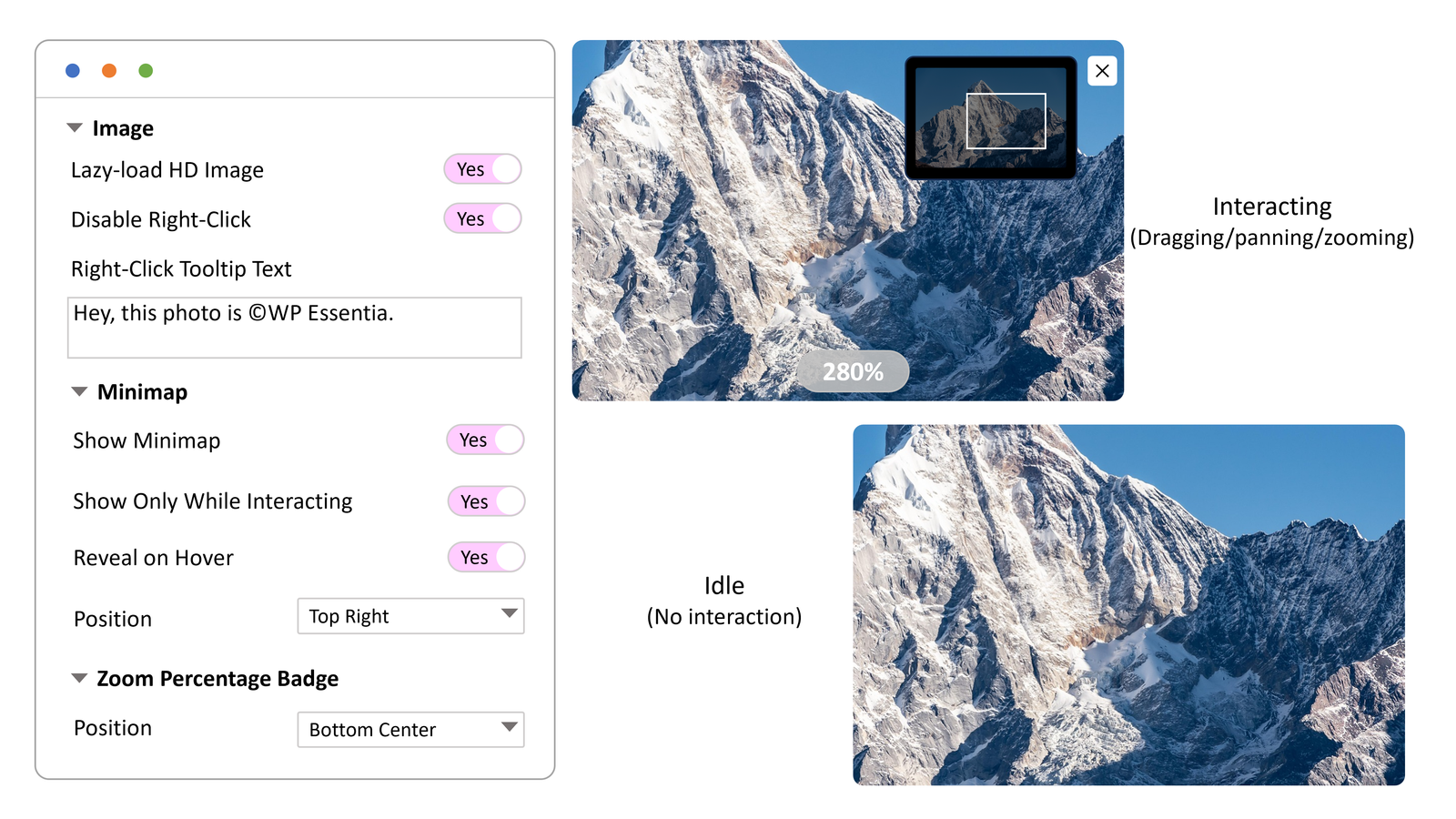
Viewer controls should help at the moment of interaction. They should not cover the image permanently. Auto-hiding controls, a subtle zoom percentage, and a minimap that stays out of the way can make the experience feel more premium.
Check the page after adding zoom
- Open the page on desktop and mobile.
- Click or tap the image, then zoom and pan normally.
- Pause after interacting and see whether controls settle down.
- Close the viewer and confirm the page state still feels natural.
- Run a performance check after adding the viewer to important pages.
A good viewer should stay quiet
Image Click and Zoom is designed for selective, polished inspection. Visitors get click-to-open viewing, zoom, pan, fullscreen mode, minimap feedback, right-click deterrence with signed proxy delivery, and WooCommerce support, while the page can still keep its main layout simple.
If you want the setup path, start with the Image Click and Zoom documentation and test it on the images that already carry the most visitor trust.